Showing posts with label Sabayon. Show all posts

Wednesday, June 9, 2010

Creating/Adding an NFS Share

A couple days ago I had to create an NFS share at work. I never had to create one before but I found it to be quite painless. Here's how I did it in Sabayon Linux:

1. Start the nfs daemon if it is not already launched:
#/etc/init.d/nfs start

2. Edit the /etc/exports file (create it if needed) to include the share you wish to allow access to using the following syntax:

[full_path_to_share] [client_ip] ([privalages])


Example:

/home/aether/share 192.168.64.100 (rw)


3. Update the exports by running:
#exportfs -rv


Note: you may see some output warnings, but it will most likely still work.

4. You should now be able to mount the nfs share on the client

Tuesday, May 25, 2010

Bootloader Emulation

Modifying settings on a boot loader can be somewhat annoying; especially if you are inexperienced at it since you are prone to breaking the bootloader. When a bootloader is broken, often times you are forced to resort to throwing in a LiveCD/DVD and chrooting your filesystem and re-installing a fresh untampered bootloader. This is a time consuming and very annoying process. So...why not run an emulator of your current configuration so that in the event that the bootloader is broken, you know about it before you have to reboot. This allows the user to repair the bootloader in his filesystem rather than chrooting and all that mess that follows.

How do you emulate a bootloader you ask?
Simply download and install "qemu". For sabayon users just:
#equo install qemu


Then when the package is properly installed, run this:
#sync ; echo 3 > /proc/sys/vm/drop_caches ; qemu -hda /dev/sda


This assumes the bootloader is on the MBR. Adjust the command accordingly.

Not too shabby!

Thursday, April 1, 2010

Sabayon Kernel Upgrade Procedure

For those that know me, you probably have heard me talk about Sabayon and praise it for its flexibility, hardware support, good looks, humor (yes humor...see below for a nice April's Fools joke), and most importantly ease of use.
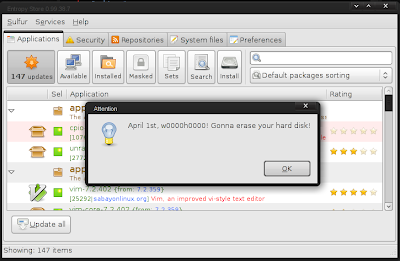

One of the nice things about Sabayon is that the kernel updating is quiet simple, given the complexities involved with the kernel. Below I outline a general procedure to help avoid any headaches one might have when updating their kernel.

1. Grab a list of drivers that will need to be updated:
#equo query installed $(uname -r)

2. Download/Install the kernel:
#equo install sys-kernel/linux-sabayon

3. Install all packages listed in Step 1 (make sure to remove the version info otherwise you will just reinstall the current outdated package)

4. Verify that the kernel is selected:
#eselect kernel list

5. If the new kernel is not selected with '*', set it with:
#eselect kernel set [NUMBER]

6. Also make sure opengl has the correct driver selected with:
#eselect opengl list

7. Correct the opengl selection as needed with:
#eselect opengl set [NUMBER]

8. Make the new kernel the default option in grub (if so desired) by going to /boot/grub/menu.lst

9. Inside menu.lst change "default" to the the corresponding option.

10. It is also a good idea to run a dependency test and library test with:
#equo deptest
#equo libtest

And you should be good to go...NOT SO DIFFICULT IS IT?

Wednesday, August 26, 2009

OpenRC Runtime Script: Dual<-->Single Display Switching

This runtime script should work on any system that uses OpenRC (namely gentoo and sabayon). Instead of me reposting an article that I wrote up on Sabayon's Wiki, I will just link to it.
Link